Where are claude code plans stored? Nowhere durable — there is no plan file, no plans/ directory, and no index. A plan exists only as an ExitPlanMode tool-call argument inside the session transcript, and only if you submitted it for approval. This guide shows what the config directory actually contains, proves the absence by scanning every transcript on a real machine, and covers the settings and shortcuts that control what happens when you accept, clear, or leave a plan. Verified on Claude Code 2.1.222.
Key takeaways
- Claude Code has no plan store. The config directory contains
projects/,sessions/,tasks/,shell-snapshots/and more — no plans. - A plan is persisted only as a tool-call record inside the session transcript
.jsonl, and only when submitted for approval. - Across 126 transcripts and 13,664 recorded tool calls on one machine, there were zero plan records — and 275 lines mentioning the tool by name.
Ctrl+Gopens the proposed plan in your editor before you accept, which is the only built-in way to get the text out.showClearContextOnPlanAcceptadds an approve-and-clear option, because the research behind a plan is usually larger than the plan.
The short answer
If you want to keep a plan, copy it out before you accept it. Nothing else reliably preserves it.
- To read or edit it now:
Ctrl+Gopens the proposed plan in your default text editor. - To keep it permanently: paste it into a file in your repo. Claude Code will not do this for you.
- To find an old one: resume the session with
/resume. The transcript is the only copy. - To discard the exploration but keep the decision: enable
showClearContextOnPlanAccept.
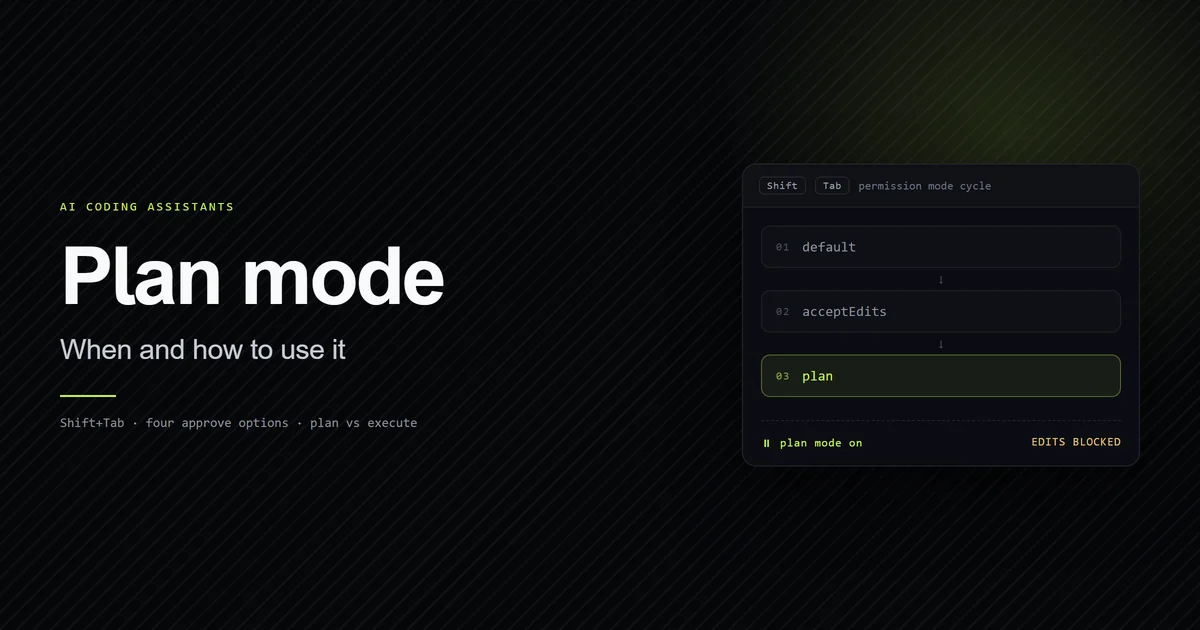
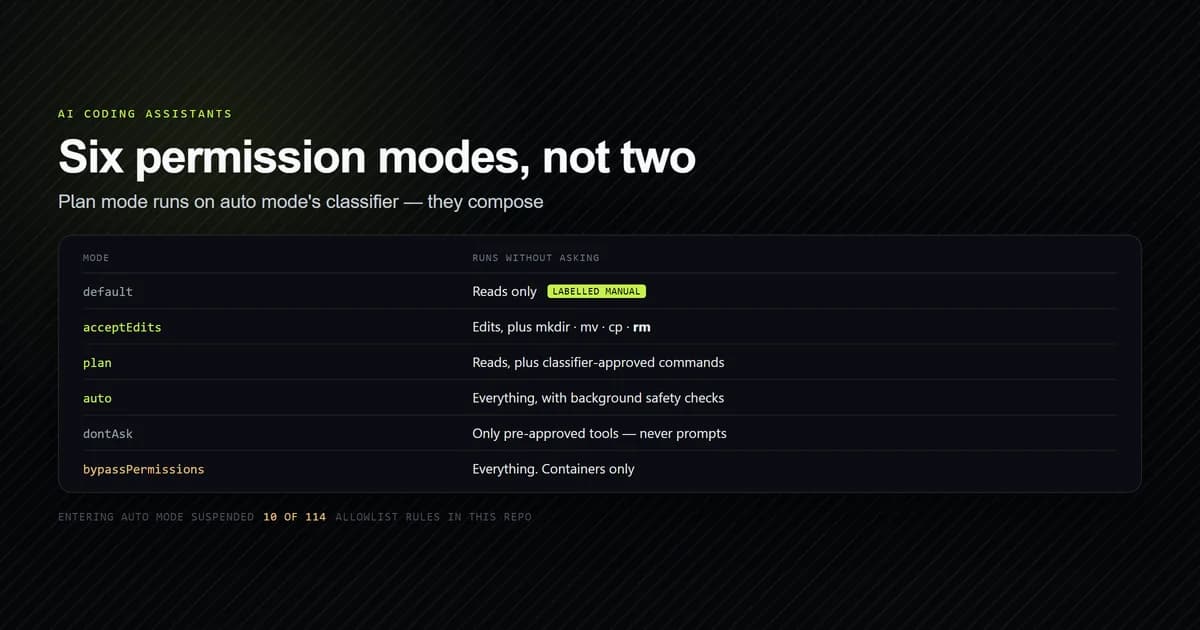
The mechanics of plan mode itself — entering it, what it blocks, how approval works — are covered in Claude Code plan mode: when and how to use it, and how it relates to the other five permission modes in auto mode vs plan mode. The broader CLI reference is the complete Claude Code guide. This article is only about where the plan goes.
Where are claude code plans stored on disk
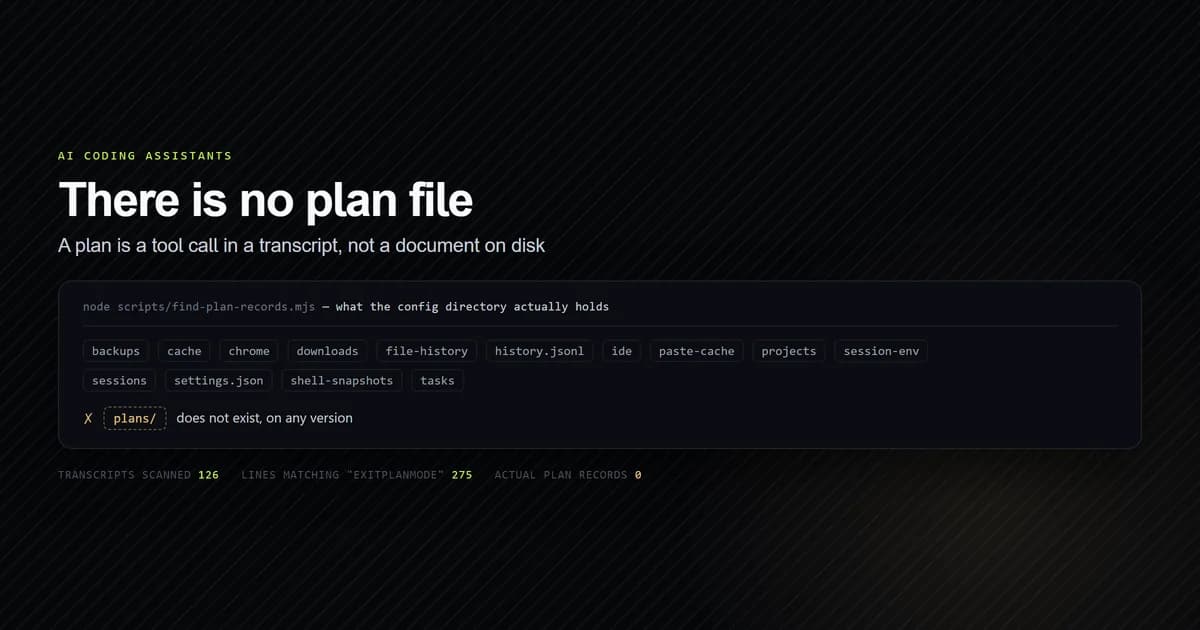
The honest answer to where are claude code plans stored is that the question contains a wrong assumption. There is no plan artifact, in the way there is a settings.json or a CLAUDE.md. A plan is a tool call, and tool calls are recorded in the session transcript.
Transcripts live at ~/.claude/projects/<project>/<session-id>.jsonl, where <project> is derived from the working directory path. Each line is one JSON record. A submitted plan appears inside one of those lines as the argument to an ExitPlanMode tool call.
That has three consequences worth stating plainly, because each one is a question people actually search for.
- A plan you never submitted was never written. If you explored in plan mode and then cycled out, nothing persisted.
- There is no way to list your plans. No command, no directory listing, no index. You would be searching transcripts.
- The transcript is session state, not a document. Anthropic treats it that way: on Claude Code v2.1.205 and later, auto mode blocks writes to transcript
.jsonlfiles entirely, on the grounds that "a transcript is session state that Claude Code writes, not a working file." Reading one is not blocked. The permission modes documentation lists that rule among the classifier's defaults.
What is actually in the config directory
Before trusting that a plan store does not exist, it is worth looking. This is the real listing from the machine this site is built on:
node scripts/find-plan-records.mjs
# → entries:  .credentials.json, .last-cleanup, .last-update-result.json, backups,
# →           cache, chrome, downloads, file-history, history.jsonl, ide,
# →           mcp-needs-auth-cache.json, paste-cache, projects, session-env,
# →           sessions, settings.json, shell-snapshots, tasks
# → plans/ directory present: NO
There is a lot of state here, which is exactly why the absence is worth checking rather than assuming. file-history/ and backups/ sound like they might hold a plan; they do not. sessions/ and tasks/ sound even more likely; also no. The only thing that contains plan text is projects/, and only inside a transcript. For what each of those entries does hold, with sizes, see where Claude Code stores history — projects/ is 89.8% of the bytes, and file-history/ is the checkpoint store rewind reads from, 771 whole-file copies of what Claude edited.
Scanning 126 transcripts for a plan
Listing a directory proves there is no plan file. It does not prove how plans are recorded. For that, the transcripts have to be parsed, so this repository has a script that does it and prints structure without printing conversation text:
node scripts/find-plan-records.mjs
# → projects scanned          19
# → transcript files scanned  126
# → distinct tool names       31
# → total tool calls recorded 13664
# → ExitPlanMode records      0
# → projects with a plan      0
Zero, across 19 projects and 13,664 recorded tool calls. That is a real result rather than a broken script — Bash, Read, Edit, Write, WebFetch and 26 other tool names were all counted correctly in the same pass.
The finding is the point: on a machine with months of Claude Code history, nothing had persisted a single plan. Plans are ephemeral by default, and that matches the mechanism. Nothing writes a plan except submitting one for approval, and every plan that was ever explored and abandoned left no trace.
Because there was no record to inspect, the script cannot describe a plan record's field layout, and this article does not either. It prints an explicit message saying so rather than guessing:
# → No plan record found, so this script cannot describe one.
# → That is the finding, not a failure: a plan is written only when
# →   a plan is submitted for approval, and nothing else persists it.
The grep that lied
The first version of this scan searched for the string ExitPlanMode and reported that it appeared in ten transcripts. That looked like ten plans. It was zero plans.
node scripts/find-plan-records.mjs
# → lines containing "ExitPlanMode"  275  (in 126 files)
# → actual plan tool calls          0
Every one of those 275 hits was the tool listing — the block that tells the model which tools exist, which appears in system attachments in every session and names ExitPlanMode among them. Here is the shape of a hit, from a real transcript:
"attachment":{"type":"deferred_tools_delta","addedNames":["CronCreate","CronDelete",
"CronList","DesignSync","EndConversation","EnterPlanMode","ExitPlanMode", …
The fix is to parse each line as JSON and check for type === "tool_use" with a matching name, rather than substring-matching the file:
const content = record.message && record.message.content;
if (!Array.isArray(content)) continue;
for (const block of content) {
  if (block.type !== "tool_use") continue;
  toolNames.set(block.name, (toolNames.get(block.name) || 0) + 1);
  if (block.name !== PLAN_TOOL) continue;
  planRecords += 1;
}
The script now prints both numbers side by side permanently, because the gap between them is the most useful thing it found. A transcript is structured data that happens to contain the names of every tool you did not call — grep will find all of them.
Claude code clear context and execute plan
The most common thing people want after a plan is to keep the decision and throw away the research, and there is a setting for exactly that.
By default, approving a plan gives you three options: approve and use auto mode, approve and manually approve each edit, or keep planning. With showClearContextOnPlanAccept enabled, the list gains a first option that approves the plan and clears the planning context in one step.
{
  "showClearContextOnPlanAccept": true
}
It is listed among the available keys in the settings reference, and like every setting there it can live at user, project, local or managed scope. Clearing here means the same thing it means anywhere else in Claude Code, which is less than the word suggests — it drops the conversation and writes nothing to disk.
This matters more than it sounds. Building a good plan means reading a lot of files, and all of that stays in context through execution unless you clear it, which is exactly the weight that shows up as a slow session. The plan is the compressed conclusion of that research; the research itself is dead weight once the decision is made. The claude code show clear context on plan accept option is the built-in way to drop one and keep the other.
Note what approval also does: it exits plan mode and switches the session to whichever mode your approve option described, so Claude starts editing immediately. It also names the session from the plan content, unless you already set a name with --name or /rename. That naming is quietly useful, because a session named after its plan is one you can actually find again with /resume.
Exit plan mode claude code without losing the work
There are three ways out of plan mode and they do different things — which permission mode each one leaves you in is the part that catches people out.
Shift+Tabcycles out without approving. Nothing is written. Use this when the plan was wrong.- Approving exits plan mode and switches to an editing mode. This is the only path that records the plan.
Ctrl+Gopens the proposed plan in your default text editor before you decide, so you can edit it directly — or save a copy.
Ctrl+G is the answer to "how do I keep this." It is the only built-in route from a proposed plan to a file you control, and it works before approval, which is the moment the text is still on screen.
For anything you want to keep across sessions, the durable answer is not a Claude Code feature at all: paste the plan into a file in the repository. A docs/plans/ directory costs nothing and survives /clear, session expiry, and the transcript being state rather than a document.
Best practices for managing plans
- Save before you accept, not after.
Ctrl+Gwhile the plan is on screen is the only moment the text is trivially extractable. - Enable
showClearContextOnPlanAccept. Research is usually larger than the plan it produced, and carrying it through execution buys nothing. - Let plans name your sessions. Accepting a plan names the session automatically, which makes
/resumegenuinely usable later. Do not override it with/renameunless the plan title is bad. - Commit plans that matter to the repo. For anything a teammate would need, a file in the repository beats any tool state.
- Read transcripts, never write them. They are session state. Auto mode blocks writes for that reason, and a hand-edited transcript reaches every later check when you resume.
Common mistakes
- Looking for a plans folder. Tempting because almost everything else in Claude Code is a file you can open. The symptom is a fruitless search through
~/.claude. Fix: accept that the transcript is the store, and copy plans out manually. - Grepping transcripts for a tool name. The mistake made while researching this article: 275 string matches, zero actual calls. Fix: parse the JSON lines and match on
typeandname. - Cycling out of plan mode to "come back to it." There is nothing to come back to. Fix:
Ctrl+Gand save first. - Assuming
/clearpreserves an approved plan. It starts a new session; the plan is in the old transcript. Fix:/renamethen/resume, or keep the file. - Editing a transcript to fix something. It is not a working file, and a tampered entry is read back on every resume. Fix: start a fresh session instead.
Conclusion
The practical answer to where are claude code plans stored is that you decide, because the tool does not. Treat plans as disposable output that you occasionally choose to save — the tool persists a plan only as a side effect of approving it, and never as a document you can list or open. If a plan is worth keeping, press Ctrl+G and put it in the repository before you accept. If it is not, cycle out and lose it deliberately. Then turn on showClearContextOnPlanAccept so accepting a plan drops the research that produced it, and read auto mode vs plan mode for what the session becomes the moment you approve.
Frequently asked questions
Where are Claude Code plans stored on disk?
Can I recover a plan from a session I already closed?
What does showClearContextOnPlanAccept do?
How do I exit plan mode without approving the plan?
Does accepting a plan change my permission mode?

Muhammad Kashif
Founder and editor of Devventa, covering AI coding assistants, Next.js and the modern AI development stack.