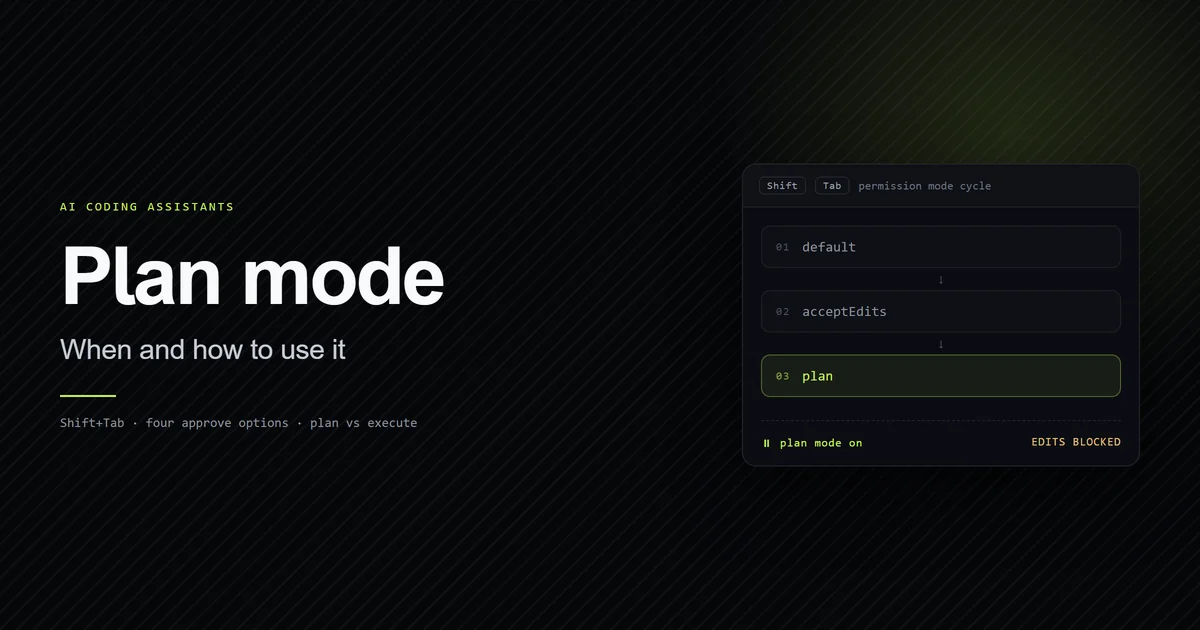
Press Shift+Tab until the status bar reads ⏸ plan mode on. That is the fastest answer, and it
covers one of ten documented controls across five surfaces. This guide lists every way to activate
plan mode in Claude Code, in the CLI, VS Code, JetBrains, the desktop app, and on web and mobile,
along with which ones persist across sessions and which apply to a single turn. It also covers
/visual-plan, which appears on most lists like this one and is not a Claude Code command.
Checked against Claude Code v2.1.223 in August 2026.
Key takeaways
Shift+TabcyclesdefaultthenacceptEditsthenplan. Optional modes slot in after plan, never before it./planplans a single turn without changing the session's mode.defaultMode: "plan"is honored in project settings, unlikeauto, which Claude Code deliberately ignores there.- In the desktop app a selected mode is remembered per folder, with plan as the documented exception: it applies to the current session only.
/visual-planis a third-party skill, not a built-in command.
How to activate plan mode in Claude Code
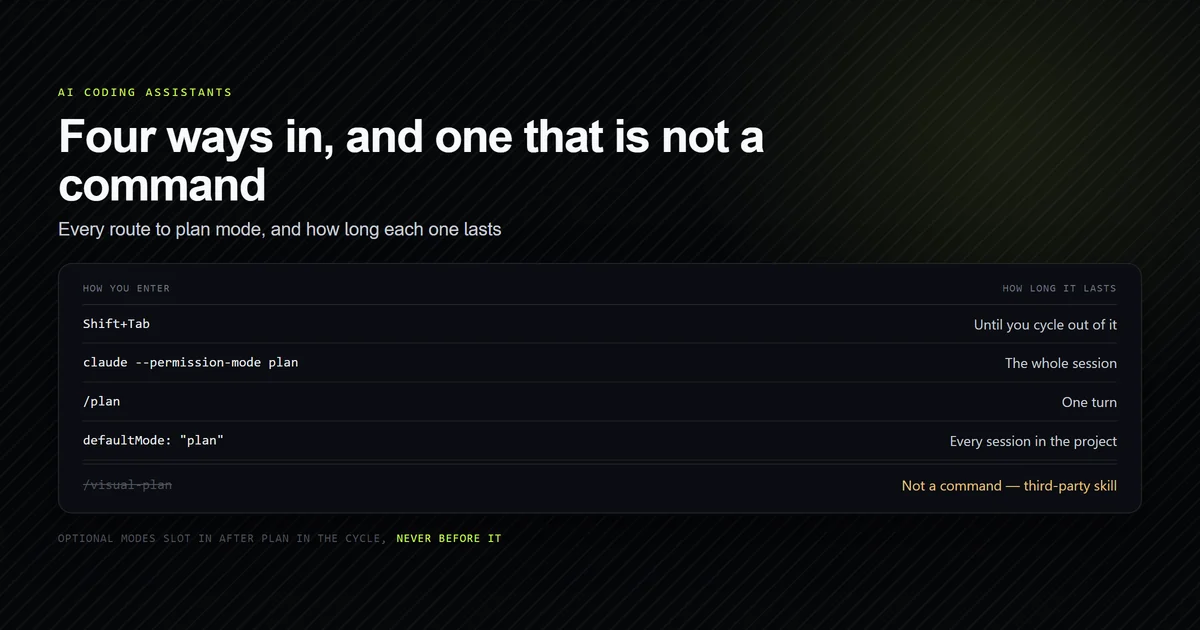
Every surface exposes plan mode differently, and the controls differ in how long they last. The table maps each one.
| Surface | Control | Scope |
|---|---|---|
| CLI | Shift+Tab cycle | Session, until changed |
| CLI | /plan prefix | One turn |
| CLI | --permission-mode plan | Session |
| Any | defaultMode in settings | Persistent |
| VS Code | Mode indicator | Session |
| VS Code | claudeCode.initialPermissionMode | Persistent |
| JetBrains | IDE terminal, same as CLI | Session |
| Desktop | Mode selector | Current session |
| Web and mobile | Mode dropdown | Session |
For what plan mode does once you are in it, and the decision rule for when it earns its extra turn, see Claude Code plan mode. For how planning fits alongside CLAUDE.md, hooks, and subagents, see the complete Claude Code guide.
The four CLI methods
Cycle with Shift+Tab. The cycle runs default, acceptEdits, plan. The status bar shows
the active mode, and plan mode reads ⏸ plan mode on. Manual mode, the default value in that
cycle, shows a gray ⏸ manual mode on badge from v2.1.203.
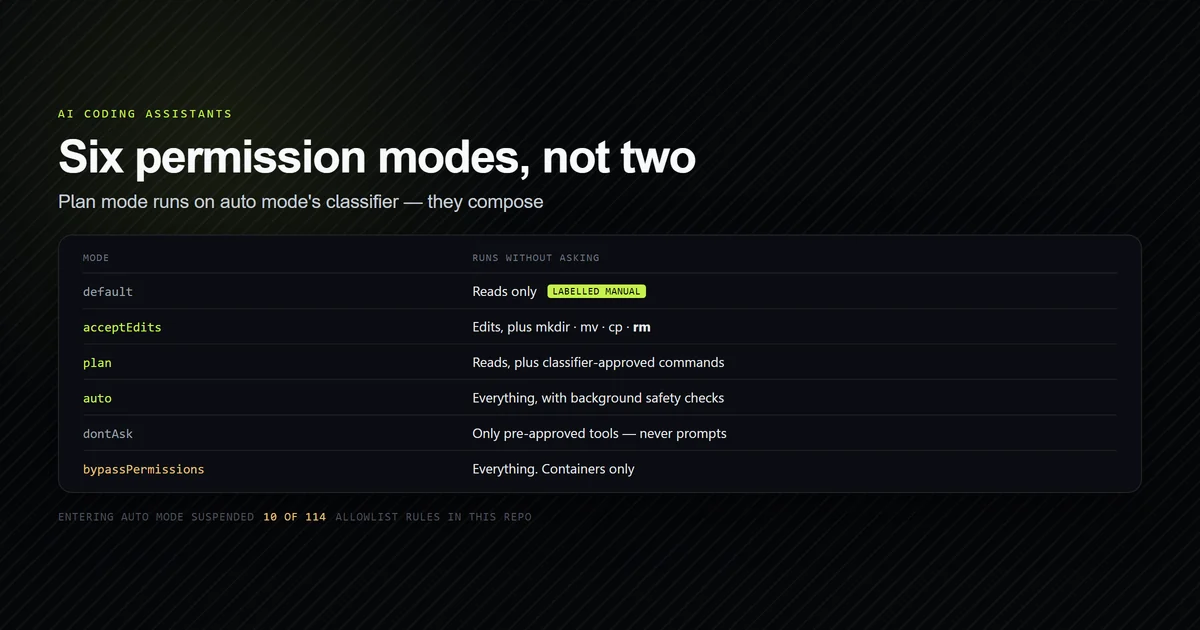
Two modes are not in the cycle by default. bypassPermissions appears only after you start the
session with an enabling flag, and auto appears when your account meets the auto mode
requirements. Both slot in after plan, with bypassPermissions first and auto last, so
enabling them never changes how many presses reach plan mode from default — the
press count and the terminals that intercept the
key are their own topic.
Prefix a single prompt with /plan. This plans one turn without changing the session's mode,
which is the right choice when you want one considered answer and then normal behavior back.
Start the session in it.
claude --permission-mode plan
The same flag works with -p for non-interactive runs.
Set it as the default. Covered in its own section below, since it behaves differently per surface.
VS Code and JetBrains
In VS Code, click the mode indicator at the bottom of the prompt box and pick Plan. The extension maps its labels to config values rather than showing the raw names:
| VS Code label | Mode |
|---|---|
| Manual | default |
| Edit automatically | acceptEdits |
| Plan | plan |
| Auto | auto |
| Bypass permissions | bypassPermissions |
Before v2.1.205 the extension labelled plan as Plan mode and auto as Auto mode, so a screenshot
in an older tutorial will not match your UI.
To start every VS Code session in plan mode, set claudeCode.initialPermissionMode in VS Code
settings or use the extension settings panel. That setting does not accept auto; to start in auto
mode you set defaultMode in user settings instead.
JetBrains needs no separate instructions. The plugin runs Claude Code in the IDE terminal, so
Shift+Tab and --permission-mode work exactly as they do in the CLI.
Desktop
Use the mode selector next to the send button. The desktop app reads the same settings files as the
CLI, so defaultMode applies to new local sessions there too.
One behavior is specific to desktop and worth knowing before you rely on committed settings: a mode
picked in the mode selector is remembered per folder and takes precedence over defaultMode for
that folder. Plan is the exception. Picking it applies to the current session only.
That exception is a safeguard rather than an inconsistency. It means one person selecting plan mode
in the UI cannot silently override a committed team default, and equally that a committed
defaultMode: "plan" is not permanently displaced by one click.
Web, mobile and Remote Control
Use the mode dropdown next to the prompt box at claude.ai/code or in the mobile app. Which modes appear depends on where the session runs.
| Session type | Modes offered |
|---|---|
| Cloud sessions | Accept edits, Plan, Auto |
| Remote Control | Manual, Accept edits, Plan |
Cloud sessions pre-approve file edits regardless of mode, which is why the dropdown shows Accept edits where a local session would show Manual. Bypass permissions is not available in cloud sessions at all.
Remote Control sessions run on your own machine and are driven from the app. The dropdown reflects the mode the local session is actually in, including a mode you set from the terminal, and updates in both directions. You can also set the starting mode when launching the host:
claude remote-control --permission-mode plan
Remote Control requires signing in with a claude.ai account. API keys are not supported for it.
Making plan mode the default
{
  "permissions": {
    "defaultMode": "plan"
  }
}
Commit that and everyone on the repository starts sessions in plan mode.
This is the one place where plan mode behaves better than auto mode. Claude Code v2.1.142 and
later deliberately ignore defaultMode: "auto" in .claude/settings.json and
.claude/settings.local.json, so a repository cannot grant itself auto mode. No such restriction
applies to plan, because starting in a mode that blocks edits cannot escalate anyone's
permissions. If you have hit the auto version of this and been confused by the silent failure,
that behavior is covered in
auto mode is unavailable for your plan.
Why visual-plan is not on this list
Search for how to activate plan mode and you will find /visual-plan presented as a Claude Code
command. It is not one.
/visual-plan is a third-party skill published by Builder.io. It generates plans as MDX with
diagrams, interactive API specs, annotated code, and zoomable wireframes, and it offers review
modes such as UI-first and prototype-first. It is a genuinely useful tool and it appears nowhere in
Anthropic's documentation, because it is something you install as a skill rather than something
Claude Code ships with.
The built-in equivalents are plan mode itself for terminal review, and ultraplan for reviewing a
long plan in a browser with inline comments on individual sections. If you want the richer artifact
that /visual-plan produces, install it deliberately as a skill rather than expecting it to be
available.
How to leave plan mode
Three exits, and they do different things — the full map of which permission mode each one lands you in is exit plan mode in Claude Code.
Shift+Tabagain leaves plan mode without approving. The plan is discarded and the session returns to cycling fromdefault.- Approving a plan exits plan mode into whichever mode the approve option describes. The options are Yes, and use auto mode, which reads Yes, auto-accept edits when auto mode is unavailable to your account, Yes, manually approve edits, and No, keep planning.
Ctrl+Gdoes not exit, but it opens the proposed plan in your text editor so you can edit it directly before Claude proceeds.
Enabling showClearContextOnPlanAccept adds a first approve option that accepts the plan and
clears the planning context. Approving also names the session from the plan content automatically,
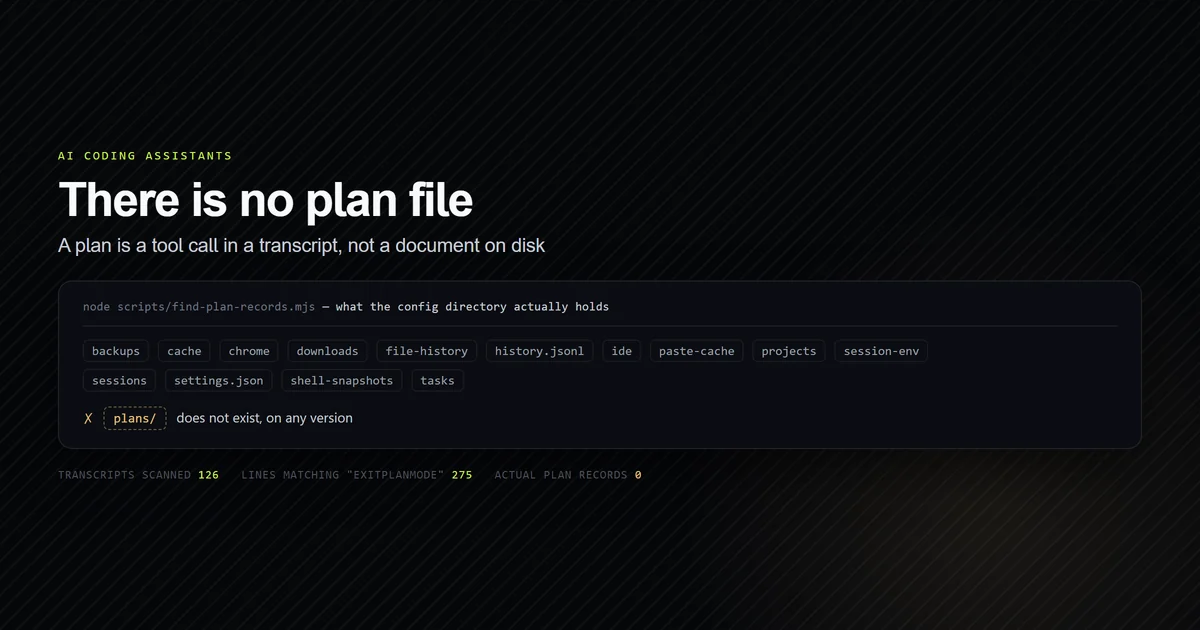
unless you already set a name with --name or /rename. Nothing here writes the plan to disk,
which surprises people often enough that it has its own
article.
Common mistakes
- Pressing
Shift+Tabtoo many times. With optional modes enabled the cycle is longer, and overshooting plan lands you inbypassPermissionsorauto. Read the status bar rather than counting presses. - Expecting
/planto change the session. It plans one turn. The next prompt runs in whatever mode the session was already in. - Expecting plan mode to persist after approval. Approving exits it. This is the single most common misunderstanding about the mode.
- Typing
/visual-planand assuming Claude Code is broken. It is a skill you have to install first. - Assuming a desktop selection sticks. Every other mode is remembered per folder; plan applies to the current session only.
Conclusion
Use Shift+Tab for ad-hoc planning, /plan when you want one considered answer without changing
the session, and a committed defaultMode: "plan" for any repository where a wrong approach costs
more than a wasted turn. On VS Code set claudeCode.initialPermissionMode so you are not clicking
the indicator every session. If a guide tells you to run /visual-plan, install the skill first,
because it is not built in. For when planning is worth the extra turn at all, see
plan mode; for how it interacts with the classifier,
see auto mode versus plan
mode.
Frequently asked questions
How do I change to plan mode in the Claude Code CLI?
How do I use plan mode in Claude Code for VS Code?
Does plan mode stay on after I approve a plan?
Is /visual-plan a Claude Code command?
Can I set plan mode as the default for a whole project?
Muhammad Kashif
Founder and editor of Devventa, covering AI coding assistants, Next.js and the modern AI development stack.