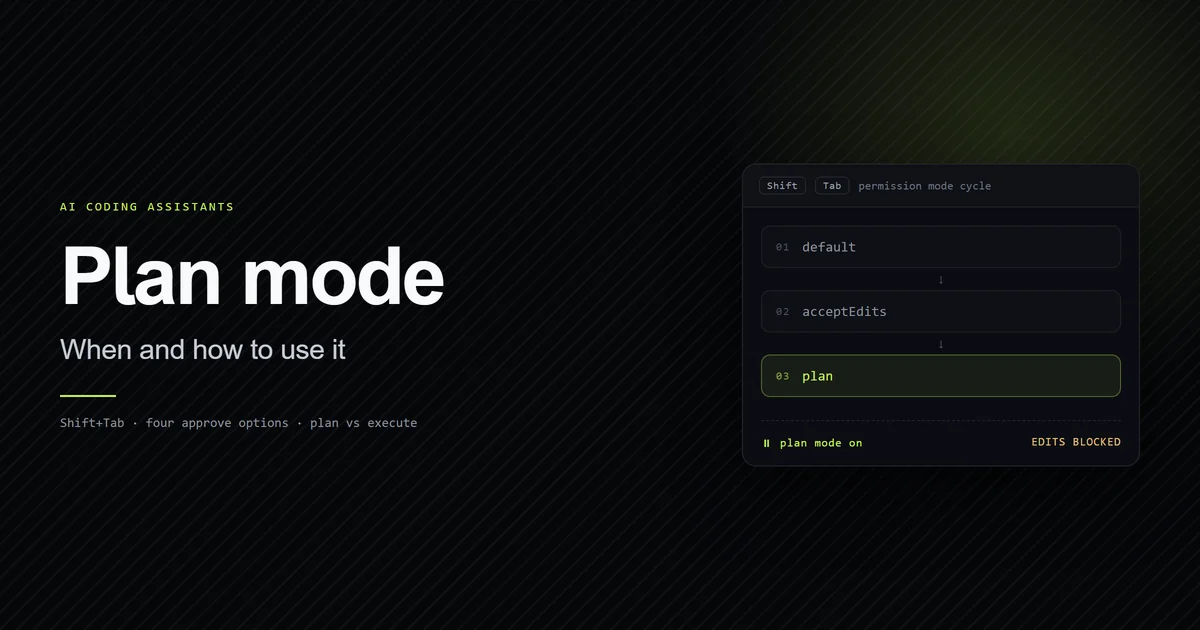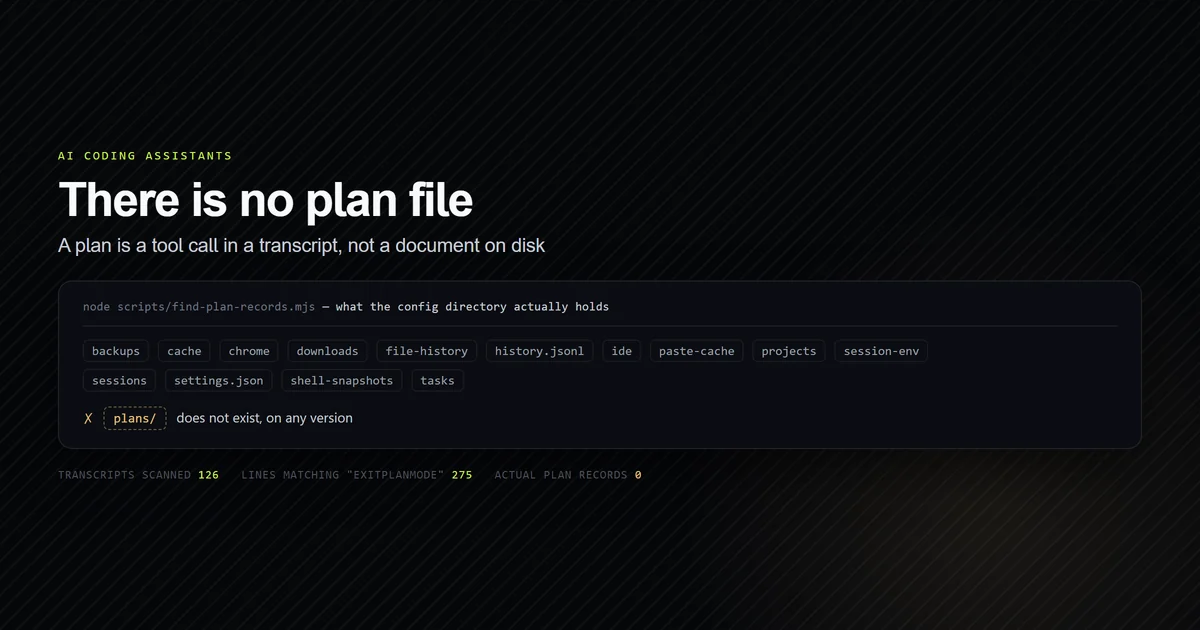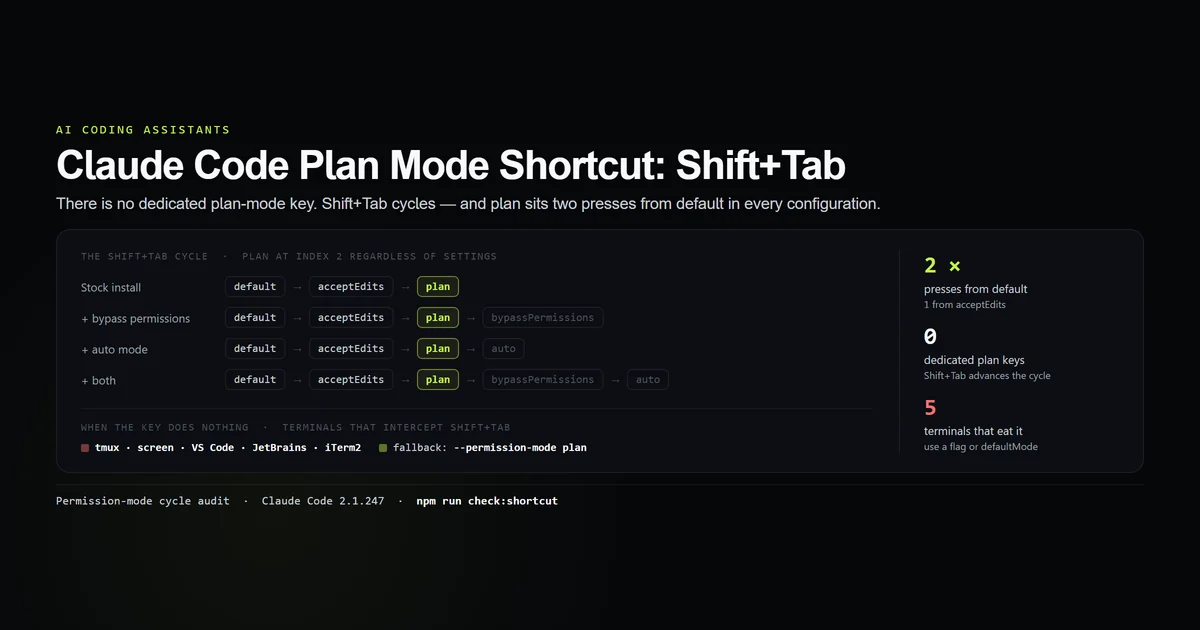
There are two fundamentally different ways to exit plan mode in Claude Code, and they are not variations on the same action. Discarding — another Shift+Tab — leaves plan mode without approving anything and writes nothing. Approving — picking one of the plan's approve options — commits the plan and drops the session into an editing mode. This guide maps every documented exit to whether it keeps the plan and which permission mode you end up in. Verified against Claude Code 2.1.247 on 2026-08-30.
Key takeaways
- Discard exits (
Shift+Tabpast plan) write nothing and discard a proposed plan silently — no confirmation, no recovery. - Approve exits keep the plan and switch the session to an editing mode:
auto,acceptEdits, or the default Manual mode, depending on the option. Escand No, keep planning are not exits — they cancel the current proposal and keep you in plan mode.- Approving also renames the session from the plan and, with
showClearContextOnPlanAccept, can clear the research context in the same step. - Only the approve path leaves a record: across 26 real transcripts, 4 plan-mode turns produced exactly 1
ExitPlanModetool call.
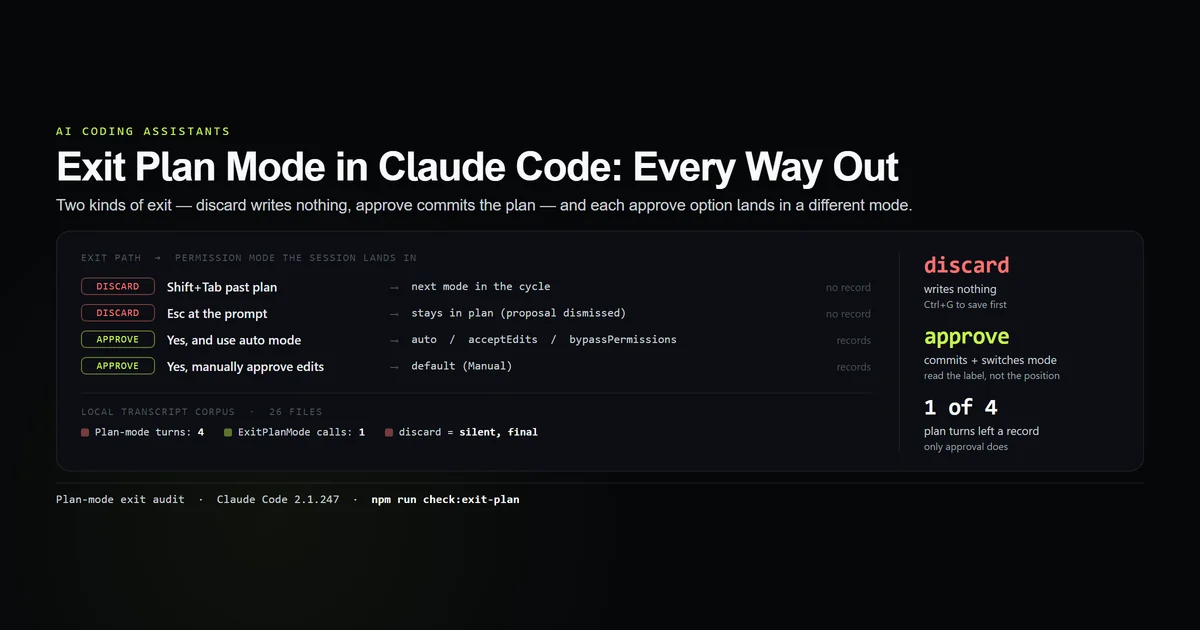
The two ways to exit plan mode
Every route out of plan mode is one of two kinds:
| Kind | How | Keeps the plan? | Lands you in |
|---|---|---|---|
| Discard | Shift+Tab past plan | No — discarded silently | Next mode in the cycle |
| Discard | Esc at the approval prompt | No | Still in plan (dismisses the proposal only) |
| Approve | Yes, and use auto mode | Yes | auto (or acceptEdits / bypassPermissions) |
| Approve | Yes, manually approve edits | Yes | default (Manual) |
| Refine | No, keep planning / refine with Ultraplan | Yes, as working state | Still in plan |
The mechanics of the Shift+Tab cycle itself — press counts, why optional modes never move plan — are in the plan mode shortcut. What plan mode blocks while you are in it is in Claude Code plan mode. This article is only about the exit.
Discard: leave without approving
From plan mode, one more Shift+Tab cycles you out. On a stock install that wraps back to the default Manual mode; if bypassPermissions or auto are enabled for the session, it moves to those instead. Either way you are no longer in plan mode, and any plan Claude had proposed is gone.
This is the right exit when the plan is wrong and you want to start over in a normal editing mode. It is the wrong exit if you were only trying to dismiss this proposal and keep planning — for that, see cancelling versus leaving below.
Approve: which mode you land in
When a plan is ready, Claude presents it with a set of options. The two that actually exit plan mode are the first two, and the difference between them is the permission mode the session inherits:
node scripts/check-exit-plan-mode.mjs
# → approve  Approve: Yes, and use auto mode        -> auto     [records plan]
# → approve  Approve: Yes, manually approve edits   -> default  [records plan]
# → discard  Shift+Tab (cycle past plan)            -> next mode in cycle
# → discard  Esc at the plan approval prompt        -> plan (proposal dismissed)
The first option's label and destination change with your account and how the session started:
| First option reads | When | Lands you in |
|---|---|---|
| Yes, and use auto mode | Auto mode is available | auto |
| Yes, auto-accept edits | Auto mode is not available | acceptEdits |
| Yes, and bypass permissions | Session started with bypass enabled | bypassPermissions |
Same key position, materially different consequences — read the label, not the position. The full decision context for what the session becomes after each is in auto mode vs plan mode.
What happens to the planning context
By default, approving a plan carries all the exploration that produced it into execution — every file Claude read to build the plan stays in context. The setting that changes this:
{
  "showClearContextOnPlanAccept": true
}
With it enabled, the approval list gains a first option that approves the plan and clears the planning research context in one step. The reasoning is that the plan is the compressed conclusion of that research; the research itself is dead weight once the decision is made, and carrying it forward is exactly the kind of context that shows up as a slow session. This is covered in more depth, alongside where the plan text actually goes, in where are Claude Code plans stored.
Cancelling a plan versus leaving plan mode
"Cancel plan" and "exit plan mode" get searched as if they were the same thing. They are not:
- Cancel the current proposal, keep planning: press
Escat the approval prompt, or choose No, keep planning. The proposal is dismissed, you stay in plan mode, and you can revise your request. - Leave plan mode entirely:
Shift+Tabto discard and switch modes, or approve to commit and switch modes.
There is no separate "cancel" key that exits plan mode. If you want out without approving, the cancel is the discard — another Shift+Tab.
What approving records
Approving a plan has three side effects beyond the mode change:
- The session is renamed from the plan content, unless you already set a name with
--nameor/rename. A session named after its plan is one you can find again with/resume. - An
ExitPlanModetool call is recorded in the session transcript. This is the only exit that leaves any trace — discarding writes nothing. - The session leaves plan mode immediately and Claude begins acting on the plan in the mode you chose.
The transcript evidence lines up with how rarely this path is taken. Across 26 session transcripts on this machine, 1,180 turns carried a permission mode and only 4 were in plan mode — and those 4 produced exactly 1 ExitPlanMode record. Every other time plan mode was entered, it was left by discarding, which is why nothing was written.
Best practices
- 1. Decide discard-or-approve before you touch the key. They switch the session to different modes and only one keeps the plan.
- 2. Save before you discard.
Ctrl+Gwhile the plan is on screen is the only trivial way to get the text out. - 3. Read the first approve option's label every time. It is auto mode, accept-edits, or bypass permissions depending on your account and session — not a fixed choice.
- 4. Enable
showClearContextOnPlanAccept. Approving then drops the research and keeps the decision. - 5. Use
Esc/ No, keep planning when you only meant to dismiss one proposal. That is not an exit and keeps you in plan mode.
Common mistakes
- Mistake 1: Cycling out to "come back to it later." There is nothing to come back to — the plan is discarded the moment you leave. Fix:
Ctrl+Gand save first. - Mistake 2: Reading the approve dialog by position. The first option's consequence ranges from "review every edit" to "bypass permissions". Fix: read the label.
- Mistake 3: Expecting plan mode to persist after approval. Approving exits it. If the next task also needs planning, cycle back with
Shift+Tabor prefix/plan. - Mistake 4: Confusing Esc with an exit.
Escdismisses the proposal and leaves you in plan mode. To leave the mode you still need aShift+Tabor an approval.
Conclusion
Treat the exit as a two-way fork: discard with Shift+Tab when the plan is wrong and you want a clean editing mode, or approve when it is right — and then read the label to know whether you are landing in auto mode, accept-edits, or Manual. Save anything worth keeping with Ctrl+G before you discard, because cycling out is silent and final. For the cycle mechanics see the plan mode shortcut; for where an approved plan's text lives afterward, see where are Claude Code plans stored.
Frequently asked questions
How do I exit plan mode in Claude Code?
How do I cancel a plan without leaving plan mode?
Does exiting plan mode delete the plan?
What permission mode am I in after I approve a plan?
Does leaving plan mode change my context or session name?
Muhammad Kashif
Founder and editor of Devventa, covering AI coding assistants, Next.js and the modern AI development stack.