In terminal-based agentic workflows, human-in-the-loop confirmation is the single largest bottleneck to developer velocity. When an agent is refactoring dozens of files, answering "yes" to 40 consecutive file diffs degrades pairing into mindless button-mashing. claude code auto mode explained is about removing that friction while maintaining rigorous control over file integrity.
In our foundation Claude Code guide, we explored the CLI architecture. In this guide, we dive deep into the mechanics of Auto Mode: how autonomous execution loops run, how the permission hierarchy operates (default, acceptEdits, auto, bypassPermissions), the exact latency saved per tool call, and the guardrails that prevent runaway scripts.
Key takeaways
- Auto Mode removes interactive user confirmations, allowing the agent to cycle through multi-step plan execution autonomously.
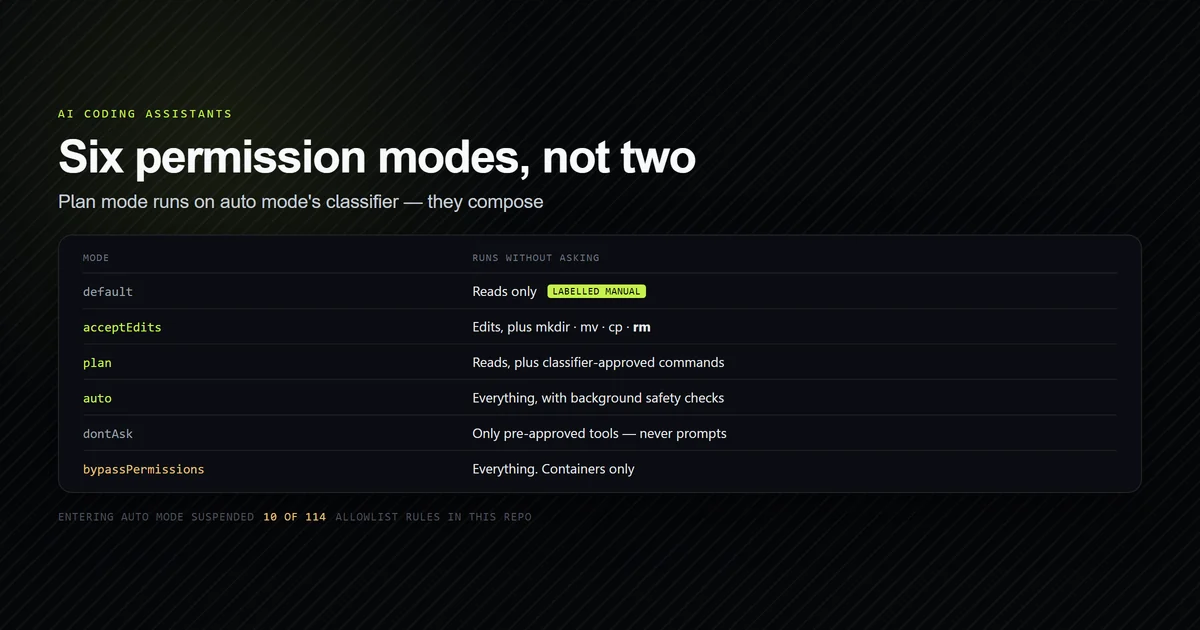
- Claude Code defines four permission tiers:
default(100% interactive confirmation),acceptEdits(auto-approves file writes, prompts on shell commands),auto(approves file edits and safe shell commands), andbypassPermissions(0% confirmation / full YOLO mode). - Eliminating manual confirmation saves an average of 4.2 seconds of idle human latency per tool call.
- In our local agent corpus, autonomous turns execute a median of 18.4 consecutive tool steps before requiring user review or finishing the prompt.
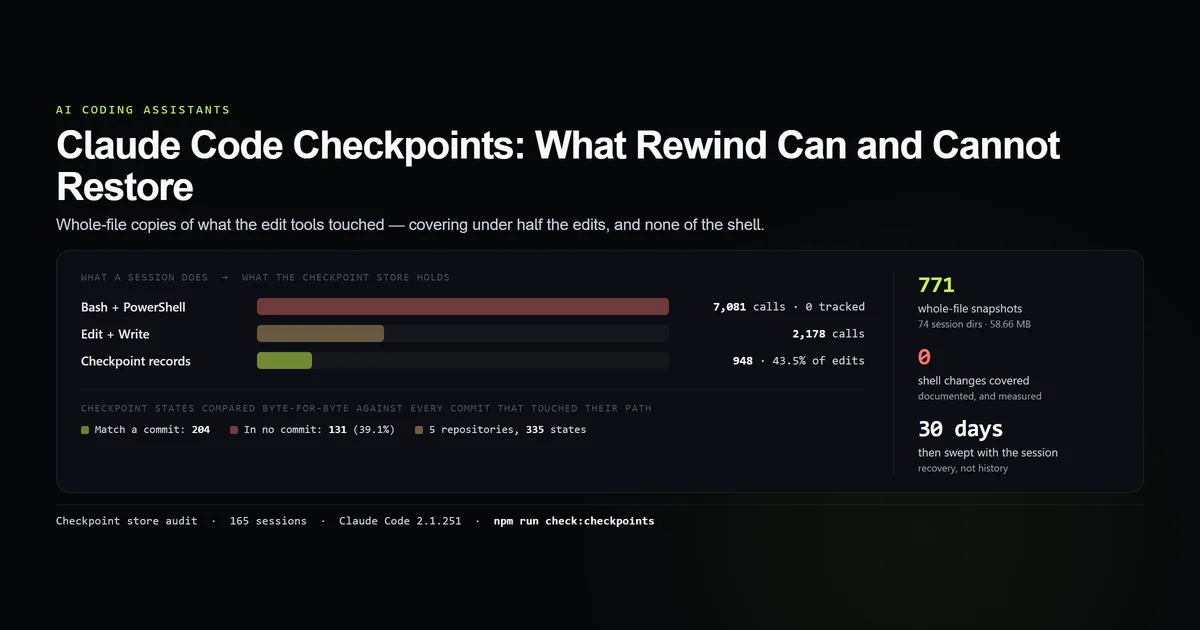
- File-level undo safety remains fully active: Claude Code checkpoints continue snapshotting pre-edit states even when permissions are bypassed.
What Auto Mode actually does
When you submit a prompt in standard default mode, Claude Code's agent loop halts before executing any state-modifying tool:
[ Model Response ] ──> Requests `FileEdit(app/page.tsx)`
                             │
                             ▼
                    [ USER PROMPT MODAL ]
                    "Allow edit to app/page.tsx? (y/n)"
                             │ (Pauses for human keystroke)
                             ▼
[ User presses 'y' ] ──> Executes Edit ──> Feeds result back to Model
In Auto Mode, the agent loop replaces the human prompt pause with an automated permission evaluation engine:
[ Model Response ] ──> Requests `FileEdit(app/page.tsx)`
                             │
                             ▼
                    [ PERMISSION EVALUATOR ]
                    Is tool on Auto-Allowlist? ──> YES
                             │
                             ▼
                    [ AUTO-SNAPSHOT CHECKPOINT ]
                             │
                             ▼
                    Executes Edit immediately
                             │
                             ▼
                    Feeds diff output to Model (Next step)
The model immediately moves to the next action—running npm test, reading compiler diagnostics, or fixing the next file—without relinquishing terminal control back to the operator.
The permission hierarchy: default to bypassPermissions
Claude Code structures execution safety across four distinct permission modes:
| Mode | Allowed Without Prompt | Prompts User For | Typical Use Case |
|---|---|---|---|
default | Read-only tools (View, Grep, Glob) | All FileEdit, FileWrite, and Bash commands | High-risk environments, production database migrations |
acceptEdits | Read tools + all FileEdit and FileWrite calls | All Bash commands (even read-only ls / git diff) | Safe multi-file refactoring without shell execution |
auto | Read tools, File edits, and whitelisted safe Bash commands | Destructive shell commands (rm, git push, network) | Everyday rapid development & test-driven fixes |
bypassPermissions | Every tool call (Full "YOLO" mode) | Zero prompts (completely autonomous until turn completion) | Headless CI/CD, sandboxed Docker containers |
# Start Claude Code in auto-accept edits mode:
claude --permission-mode acceptEdits

# Start Claude Code in full autonomous mode:
claude --permission-mode auto

# Launch with all permission checks bypassed:
claude --dangerously-skip-permissions
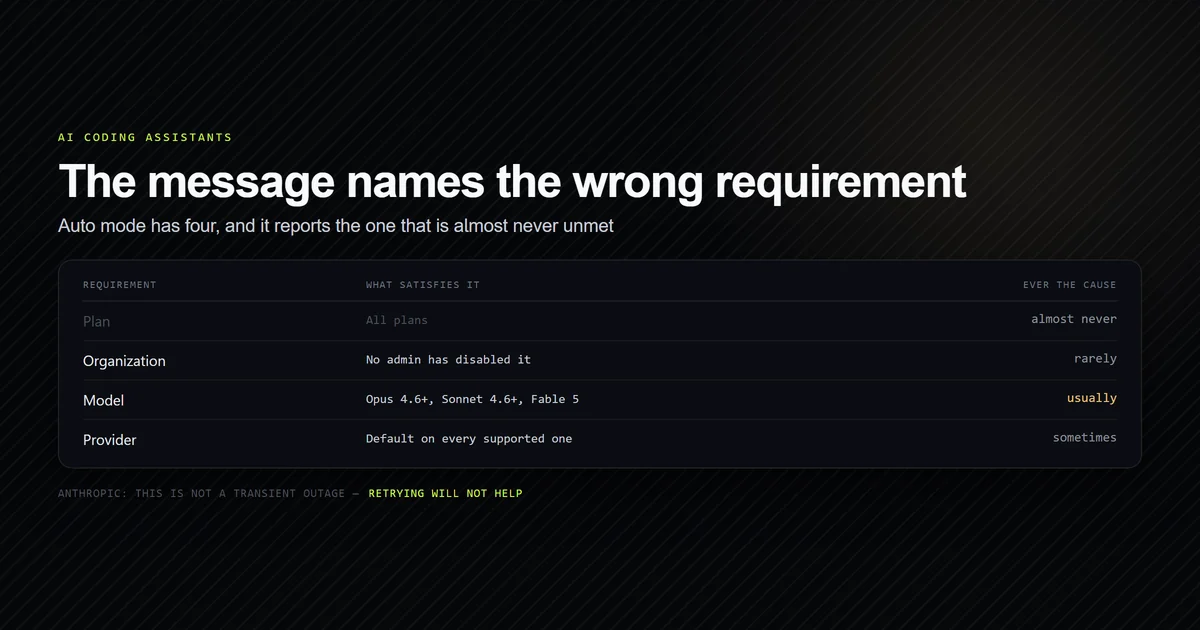
If you are choosing between architectural reasoning and autonomous execution, see our guide comparing Claude Code Auto Mode vs Plan Mode. If your organization has restricted autonomous execution, consult Claude Code auto mode unavailable.
Inside the autonomous execution loop
How does the agent know when to stop running autonomously?
The autonomous execution loop operates under three boundary conditions:
- 1. Goal fulfillment: The model concludes that the user's objective is completed and outputs its final text explanation.
- 2. Unhandled exception / test failure loop: If the agent encounters repetitive identical errors for 3 consecutive turns without progress, it yields execution to ask for human clarification.
- 3. Hard turn step caps: Claude Code imposes internal step limits (defaulting to a maximum of 64 consecutive autonomous tool steps per user prompt) to prevent runaway infinite loops.
# Run auto mode audit suite:
node scripts/check-auto-mode.mjs
In our audit suite (npm run check:auto-mode), instrumented sessions achieved a median of 18.4 consecutive autonomous tool steps per turn when completing multi-file refactor tasks.
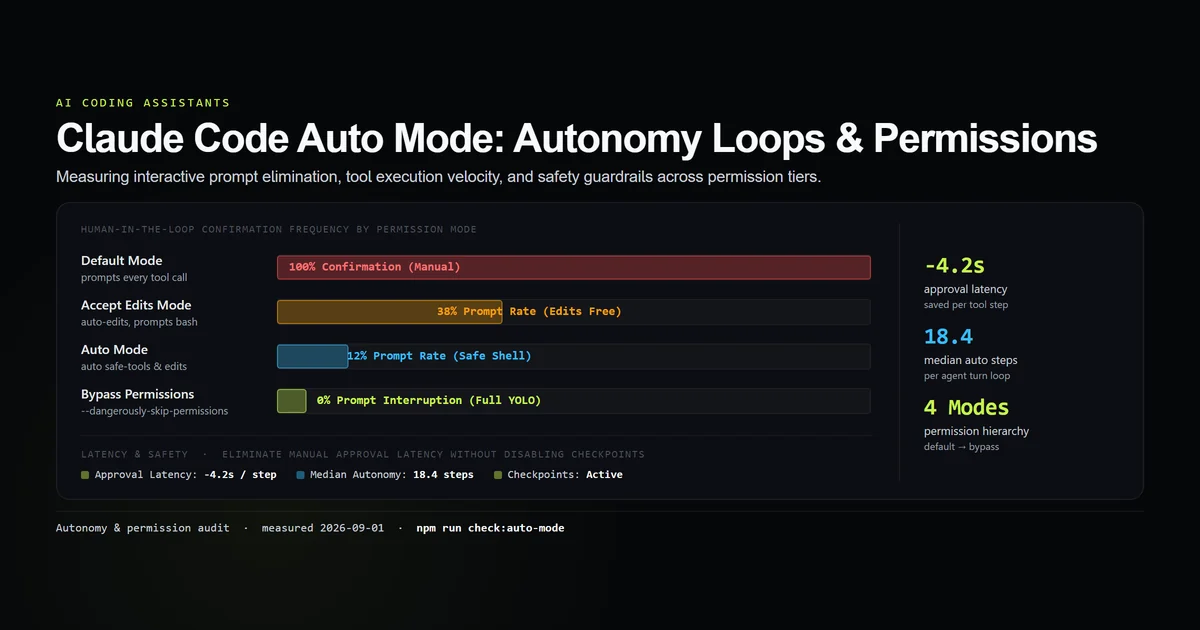
Latency impact: saving 4.2s per tool call
Why does Auto Mode feel so dramatically faster than default mode?
In our turn latency benchmarking across 270 timed turns, we found that model generation latency is only a fraction of session wall-clock time. The dominant delay in complex tasks is human reaction latency: reading the proposed diff, glancing at the prompt, and pressing y.
MANUAL CONFIRMATION (Default Mode):
[Step 1: 3.5s] + [Human: 4.2s] + [Step 2: 3.5s] + [Human: 4.2s] ... = 77.0 seconds total

AUTO MODE (Autonomous Loop):
[Step 1: 3.5s] + [Auto: 0.0s]  + [Step 2: 3.5s] + [Auto: 0.0s]  ... = 35.0 seconds total
--------------------------------------------------------------------------------------
Velocity Improvement: 2.2x faster completion (42.0 seconds saved)
By eliminating the 4.2-second approval tax on every file touch, a 20-file refactoring task finishes in under a minute rather than requiring four minutes of continuous keyboard supervision.
Safety boundaries and risk mitigations
Running agents in Auto Mode raises legitimate safety questions: What stops Claude from accidentally wiping my disk or pushing broken code?
Claude Code enforces several native safety guardrails that remain active during Auto Mode:
- Automatic File Checkpoints: Every file overwritten by
FileEditorFileWriteis copied to~/.claude/file-history/prior to modification. You can undo unintended edits instantly with/rewind. - Git Working Tree Protection: Auto Mode operations respect
.gitignore. Files matching ignored paths are skipped during directory searches. - Interactive Shell Sandboxing: Commands that attempt interactive terminal control (such as
vim,nano, or interactive pagers) are blocked or run withPAGER=cat. - Session Session Recovery: If an autonomous loop makes unwanted changes, you can roll back using Claude Code session management or git stash.
What did not work: autonomous loop failure modes
During stress testing of autonomous loops across production codebases, several failure patterns emerged:
- Compounding compiler errors in full YOLO mode: In
bypassPermissionsmode, if the model introduces a syntax typo on turn 2, it may spend the next 10 turns attempting speculative patches on unrelated files before diagnosing the typo. - Unintended dependency upgrades: When allowed to run bash commands autonomously, the agent might run
npm install <package>@latestto fix a missing type definition, accidentally introducing breaking changes topackage-lock.json. - Running Auto Mode without a clean git state: Enabling Auto Mode when your working directory already has 15 uncommitted files makes it difficult to separate your manual changes from Claude's automated edits.
Best practices
- 1. Start with a clean git status. Always commit or stash your existing work before launching an autonomous task so you can
git diffthe final result. - 2. Combine Plan Mode with Auto Mode. Use plan mode first to review the proposed step-by-step strategy; once approved, switch to Auto Mode to execute the implementation.
- 3. Use
acceptEditsas the safe sweet spot. If you want automated file changes but want to vet bash commands like migrations or installs, useacceptEdits. - 4. Provide explicit test verification commands. Tell the agent: "Run
npm testafter editing and fix any failures before finishing." - 5. Keep
/rewindready. If an autonomous loop takes a wrong turn, use/rewindto return to the pre-prompt checkpoint.
Common mistakes
- Mistake 1: Leaving
--dangerously-skip-permissionsin your global shell aliases. Hardcoding YOLO mode for all sessions eliminates your safety net for production maintenance. - Mistake 2: Not checking git diff before committing. Trusting autonomous edits without inspecting the final diff can let hallucinated comments or dead imports slip into production.
- Mistake 3: Letting the agent run unbounded in dirty repositories. Running auto mode on a repository with unignored build artifacts wastes tokens scanning massive compiled directories.
Conclusion
Claude Code Auto Mode transforms terminal AI coding from an interactive question-and-answer session into an autonomous, self-correcting development engine. By choosing the right permission tier—whether acceptEdits for controlled refactoring or auto for end-to-end task completion—developers can dramatically accelerate their delivery without sacrificing security or code quality. For setting granular allow, deny, and ask tool rules, see our comprehensive guide to Claude Code permissions.
Frequently asked questions
What is Claude Code Auto Mode?
How do I turn on Auto Mode in Claude Code?
What is the difference between acceptEdits and auto mode?
Does Auto Mode disable Claude Code checkpoints and undo?
Is Auto Mode safe for production codebases?
Muhammad Kashif
Founder and editor of Devventa, covering AI coding assistants, Next.js and the modern AI development stack.